
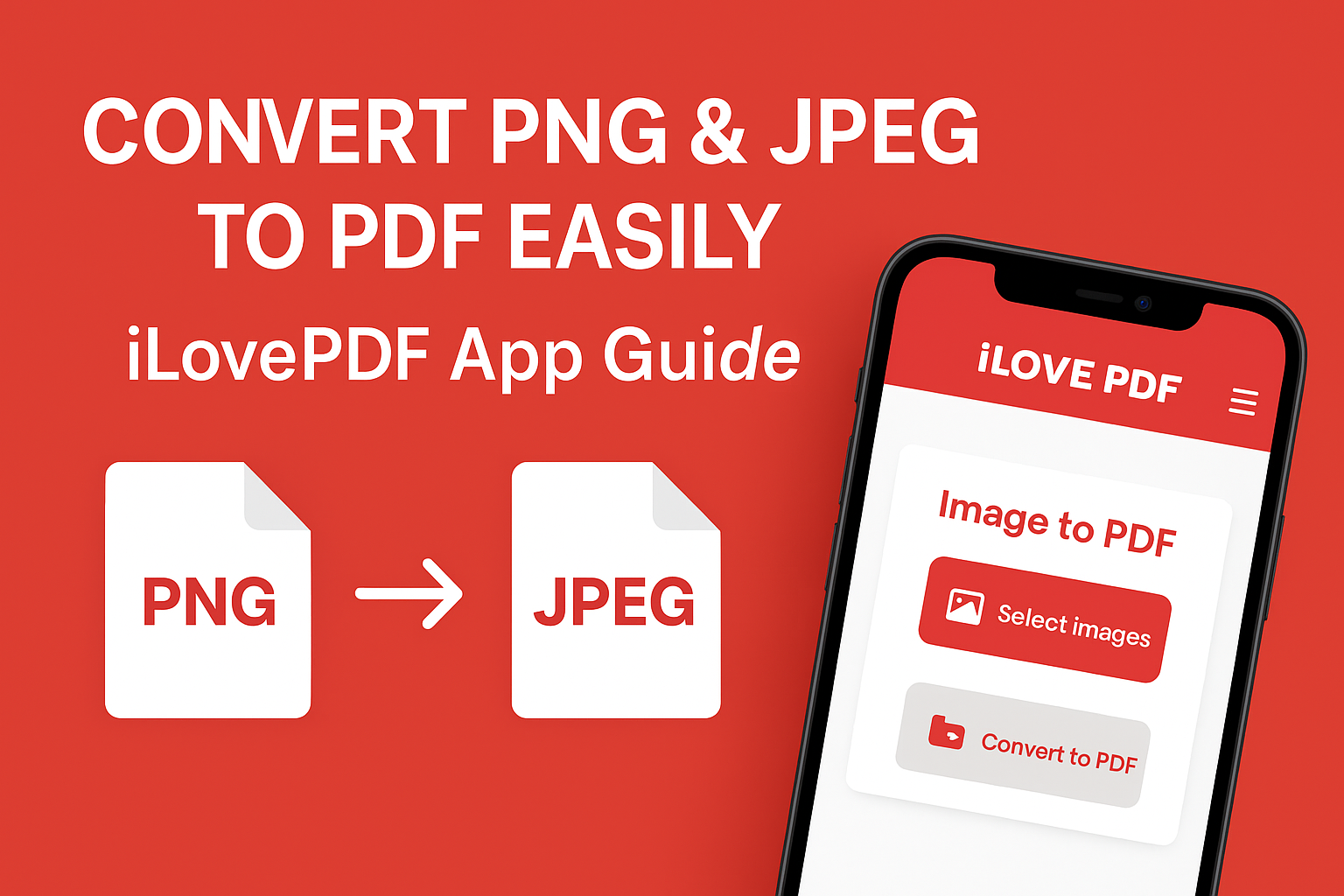
In today’s digital world, converting your image files like PNG or JPEG into a PDF is a daily need — whether you’re submitting documents online, sharing designs, or creating portfolios. One of the easiest and most reliable tools for this is the iLovePDF app.
This free, user-friendly app helps you convert, merge, and compress PDFs in seconds. Let’s see how you can convert your images into a single or multi-page PDF using iLovePDF.
Step-by-Step Guide: Convert Images to PDF on iLovePDF App
Step 1: Download and Open the App
- Go to the Google Play Store or Apple App Store and install the iLovePDF app.
- Open the app and sign in (optional, but helps save your files in the cloud).
Step 2: Choose “Image to PDF” Tool
- On the home screen, tap on “Image to PDF”.
- You can upload PNG, JPG, or JPEG files directly from your phone’s gallery, camera, or file manager.

Step 3: Select Your Images
- Choose one or multiple images you want to convert.
- You can reorder them if you want to arrange pages in a particular sequence.
Step 4: Adjust PDF Settings
- Set the page size (A4, Letter, Fit to Image, etc.)
- Choose orientation (Portrait or Landscape).
- You can also add a margin or border if needed.
Step 5: Convert and Save
- Tap on “Convert to PDF”.
- The app will process the images and generate a PDF file within seconds.
- Save it to your device or share it via WhatsApp, Email, or Google Drive.
Why Use iLovePDF?
- ✅ Completely Free & Secure
- 📂 Supports Multiple Image Formats (PNG, JPG, JPEG, HEIC)
- ☁️ Cloud Storage Integration (Google Drive, Dropbox)
- ⚙️ Batch Conversion – Convert many images at once
- 🧰 Includes other tools like Merge PDF, Compress, Split, Edit, Rotate, etc.
The iLovePDF app is a perfect all-in-one PDF solution for students, designers, professionals, and everyday users. Whether you’re converting your PNG or JPEG to PDF, merging files, or compressing documents — this app makes it effortless.
👉 Download the iLovePDF app today and simplify your digital workflow with just a few taps! click to download App